How do I connect Yunoc on iPhone / iPad?
Use Shadowrocket: install it, sign in to the website in Safari, add lines from Connection Info and connect. For AnyConnect, follow the certificate setup steps below.
How do I add lines and connect on iPhone / iPad?
OpenConnect and Cisco Secure Client are different clients that support the AnyConnect protocol. The iPhone / iPad steps below use Cisco Secure Client (AnyConnect), not the OpenConnect command-line tool; Shadowrocket uses its own subscription setup.
Shadowrocket
Recommended: install Shadowrocket, import your subscription and choose a line.
Prefer not to switch App Store accounts? Use AnyConnect →
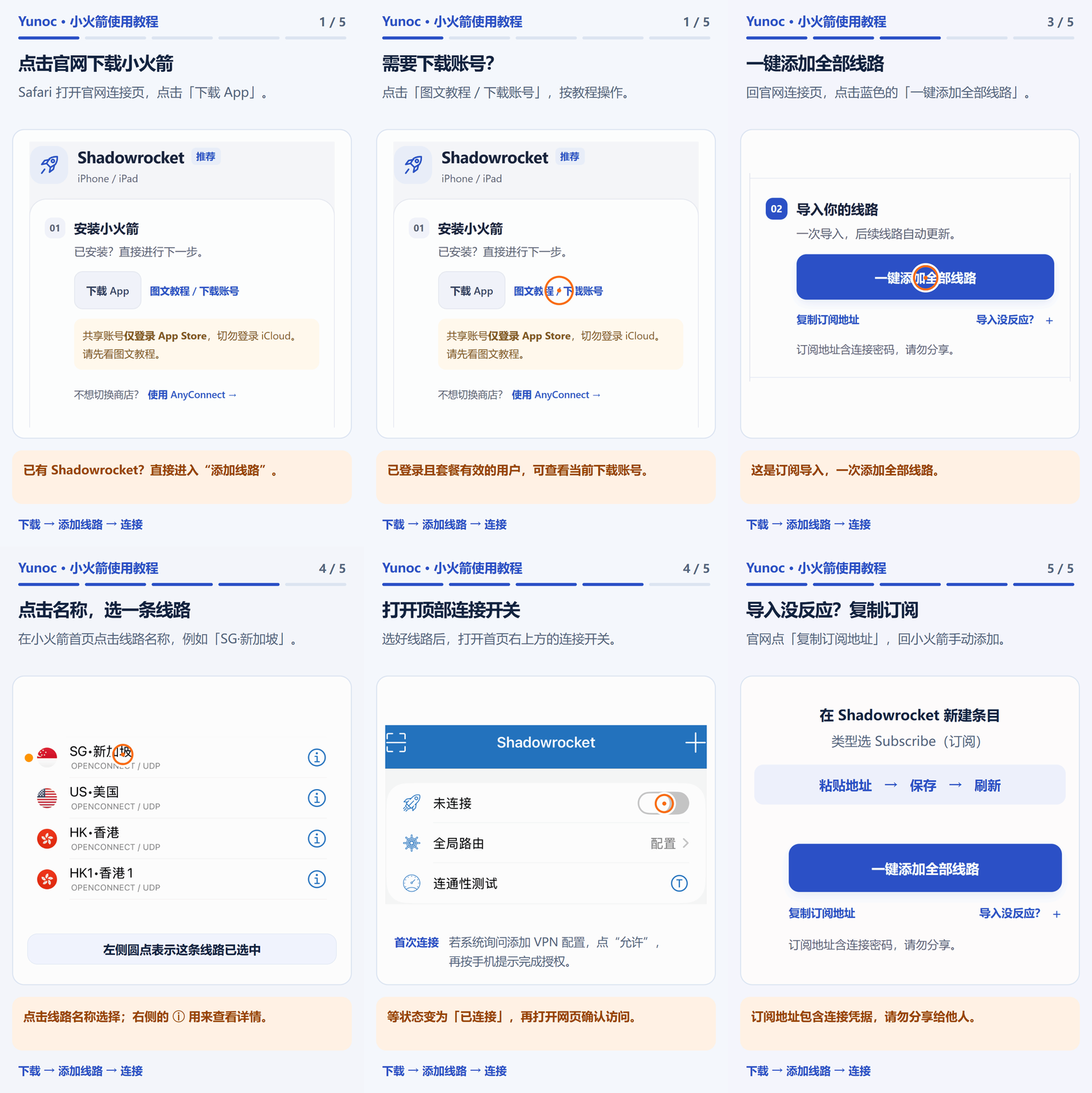
Install Shadowrocket · skip if installed
Add all lines in one tap
Choose a line and connect
Import help, line updates and subscription privacy
If the button does not work, copy the subscription URL, add a Subscribe entry in Shadowrocket, paste it, save and refresh. Refresh the subscription after line changes. Individual lines can also be added from Connection Info, but do not track subscription updates automatically.
The subscription contains your connection password. Do not share it. If exposed, reset the connection password and reimport. Revoking and replacing only the subscription URL does not invalidate credentials already exported. Manual connections use the connection password, not your website password.
AnyConnect
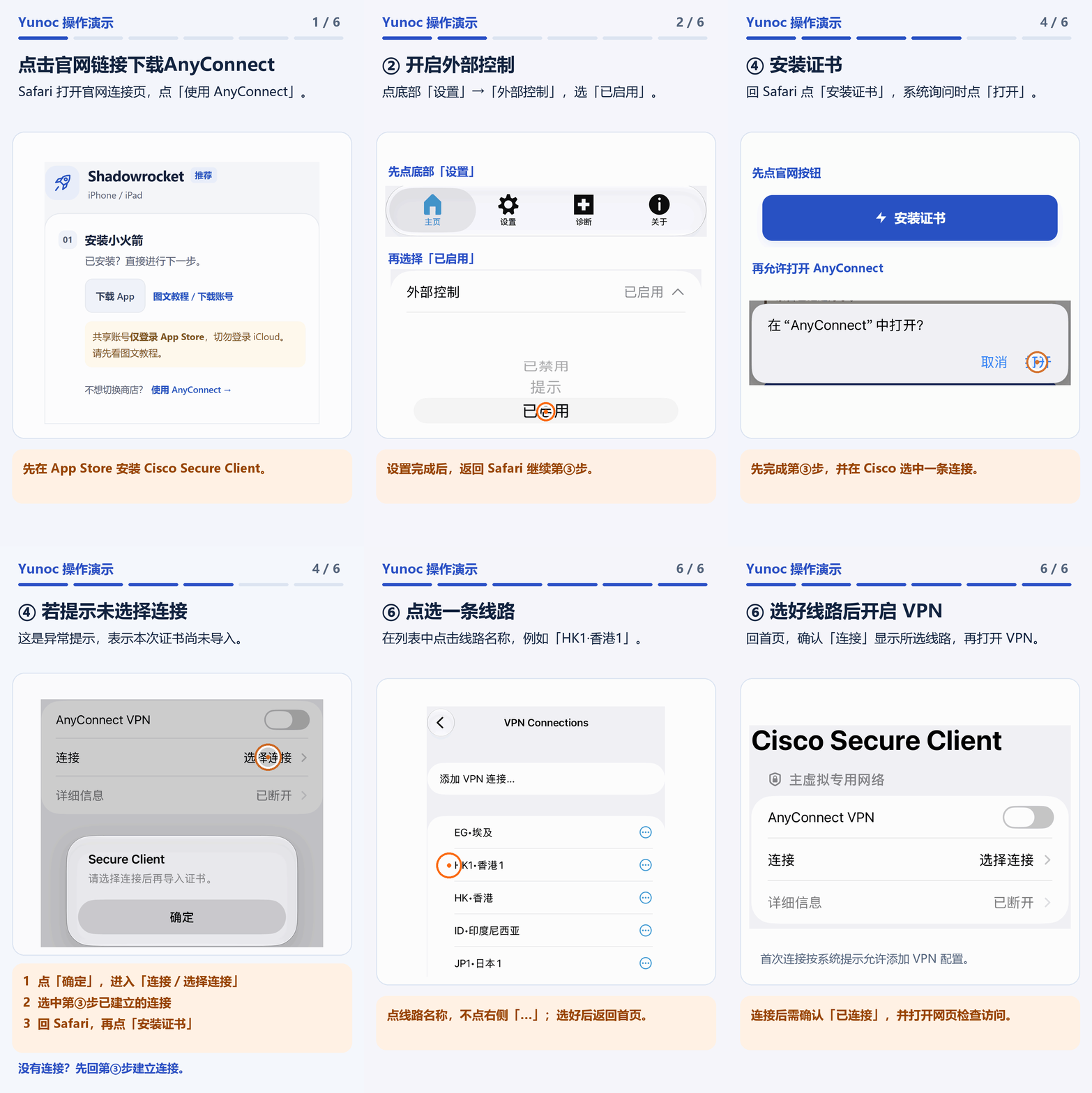
Download AnyConnect
Enable External Control
Create and select a connection first
Install the certificate, then import all lines
Select a line and connect
No response, or still asked for a connection password?
Check External Control and make sure a connection is selected. If a connection password is still requested, set Certificate to Automatic or select the imported certificate. An expired or revoked certificate must be reissued and imported again. If it still fails, follow the troubleshooting steps in the full guide.
Guides for other platforms
Not sure which routing mode to use? See Global, PAC and Return compared. Something not working? Go to the Help Center.
One account for your devices
On Windows, macOS and Android, sign in to Yunoc with your website account, sync your lines and connect. For other clients, open "Connection Info" for setup instructions. Contact support if you need help.
Sign In / Register