How do I connect Yunoc on Android?
Install Yunoc, tap the account card and sign in with your website email and password to sync lines. Choose a line and routing mode, then tap Connect.
How do I install the Android client and connect?
Yunoc, OpenConnect and Cisco Secure Client have different setup flows. Yunoc signs in with your website account and syncs lines. For an OpenConnect alternative, use the matching instructions and connection credentials on Connection Info; do not substitute your website password. OpenConnect is a client that supports the AnyConnect protocol, not the name of the protocol.
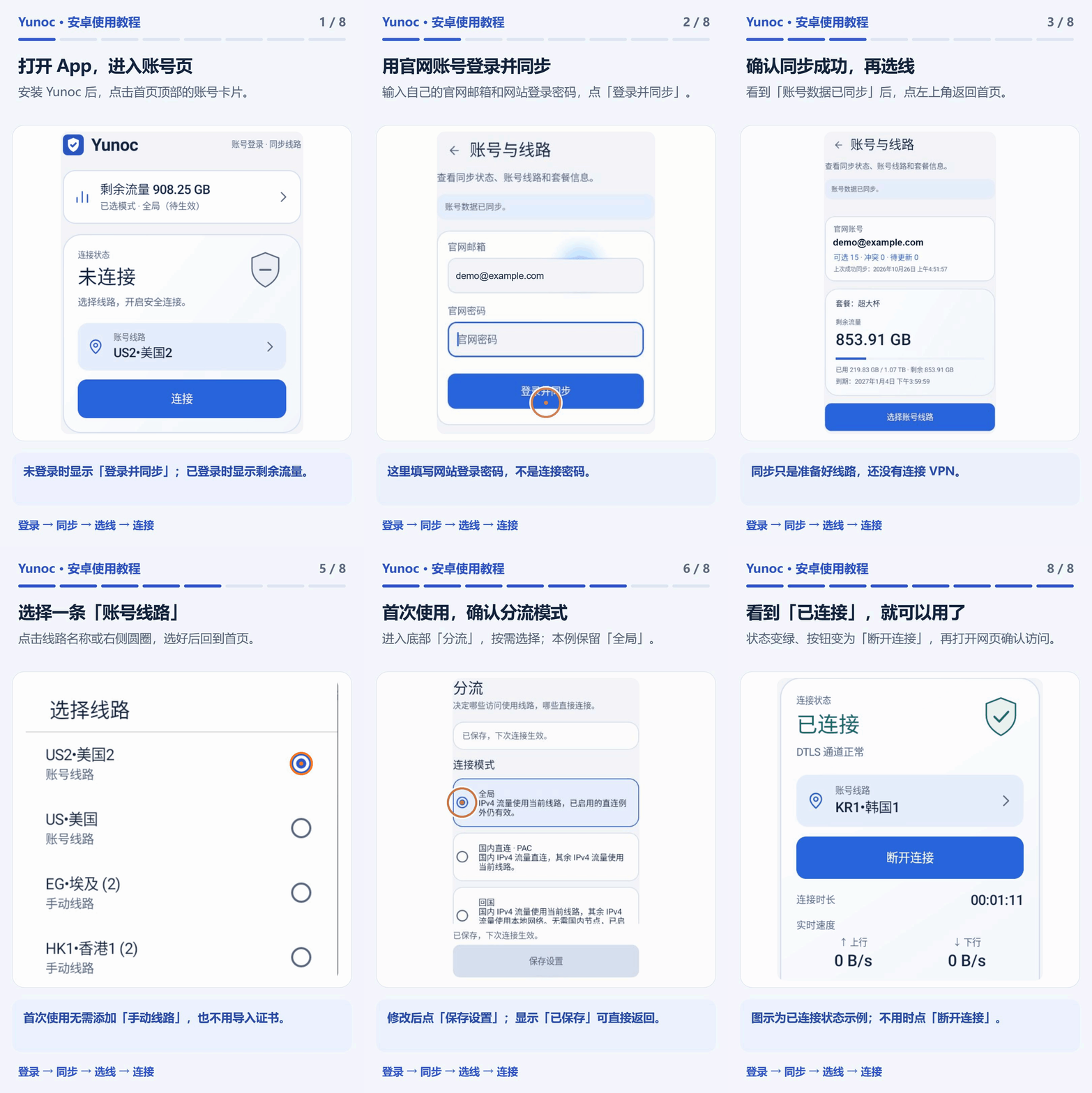
Install Yunoc
Sign in and sync
Choose a line and routing mode
Connect and check access
Account refresh, background use and other clients
Use Refresh account(刷新账号)on the account page when lines change. Use your website password, not the connection password. Telegram-created accounts can find website sign-in details in the account-creation message.
Check battery optimisation and background limits if connections drop. Notifications show status but cannot guarantee the app stays active. Use the settings available in this client; do not apply another app’s persistent-connection instructions.
Existing imported and manual lines remain available. For Cisco / OpenConnect, use the alternative instructions on Connection Info; routing support depends on the client.
Guides for other platforms
Not sure which routing mode to use? See Global, PAC and Return compared. Something not working? Go to the Help Center.
One account for your devices
On Windows, macOS and Android, sign in to Yunoc with your website account, sync your lines and connect. For other clients, open "Connection Info" for setup instructions. Contact support if you need help.
Sign In / Register